
Invite members and organize teams
Track invitations, authorize accounts and organize teams.
Access: organization administrator. Subject to enabled modules and your plan.
Invite a member
- Open My company → Members with the required invitation permission.
- Select Invite and enter the person’s email.
- Check information and offered permissions before confirming.
- Track the member’s status in the list.
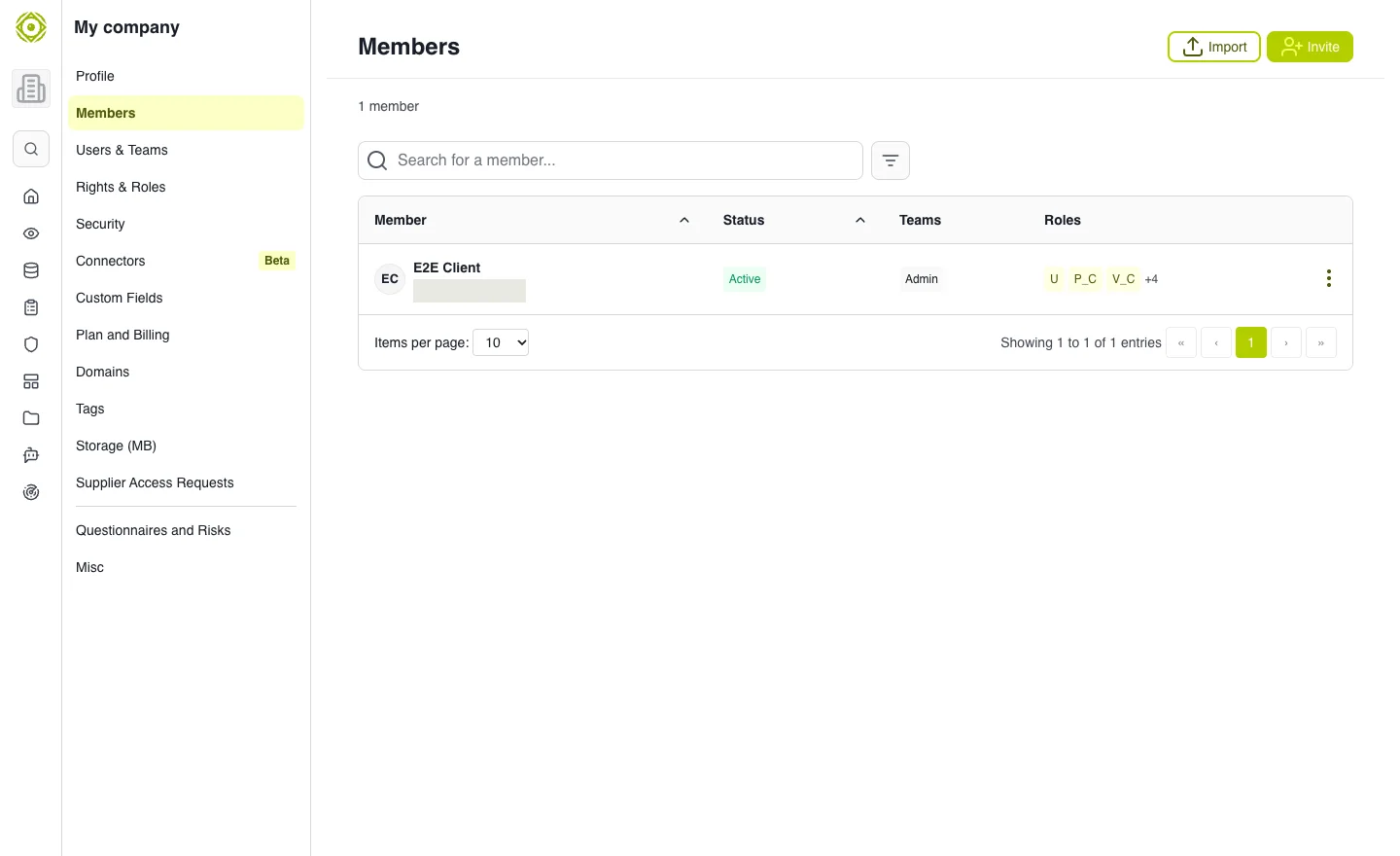
Status distinguishes account activation from authorization. · Open full-size screenshot
Understand states
A member may be not invited, awaiting activation, awaiting authorization or active. Offered actions depend on state: Send invitation, Resend the invitation, Cancel the invitation and Allow.
Revoking an invitation invalidates the link already sent. Before resending, check the address and spam folder with the recipient.
Organize teams
- Open Teams, then Add team.
- Define its name, members, owners and offered roles.
- Use teams to assign collective resource access.
- Review membership when responsibilities change.
A team can grant permissions on objects shared with it; it does not automatically make every resource visible.
Import and removal
Member import is offered in the list: use the format requested by the interface and review results. Before removing a member, check access and responsibilities that need transferring.
Expected outcome
Each person has the right account status and belongs to the necessary teams. For role details, see Permissions and sharing.
Review vendor access requests
Under My company → Supplier Access Requests, authorized reviewers can open the vendor record, read the requester and message, then Approve or Decline a pending request. Check its scope before granting access. This decision is separate from inviting a member.