
Complete and submit responses
Open the right questionnaire, complete sections and check before submission.
Access: respondent, member. Subject to enabled modules and your plan.
Access responses
Open the assessment or questionnaire link shared with you. Sign in with the account matching the invitation. Access to a library template does not by itself grant access to an assessment’s responses.
Answer
- Check the title, vendor or subject and assessment scope.
- Use the section outline to move through the questionnaire.
- Enter answers and useful comments.
- Add evidence when a question supports or requests it.
- Check the displayed save state before leaving the page.
- Review required questions, then use submission when offered.
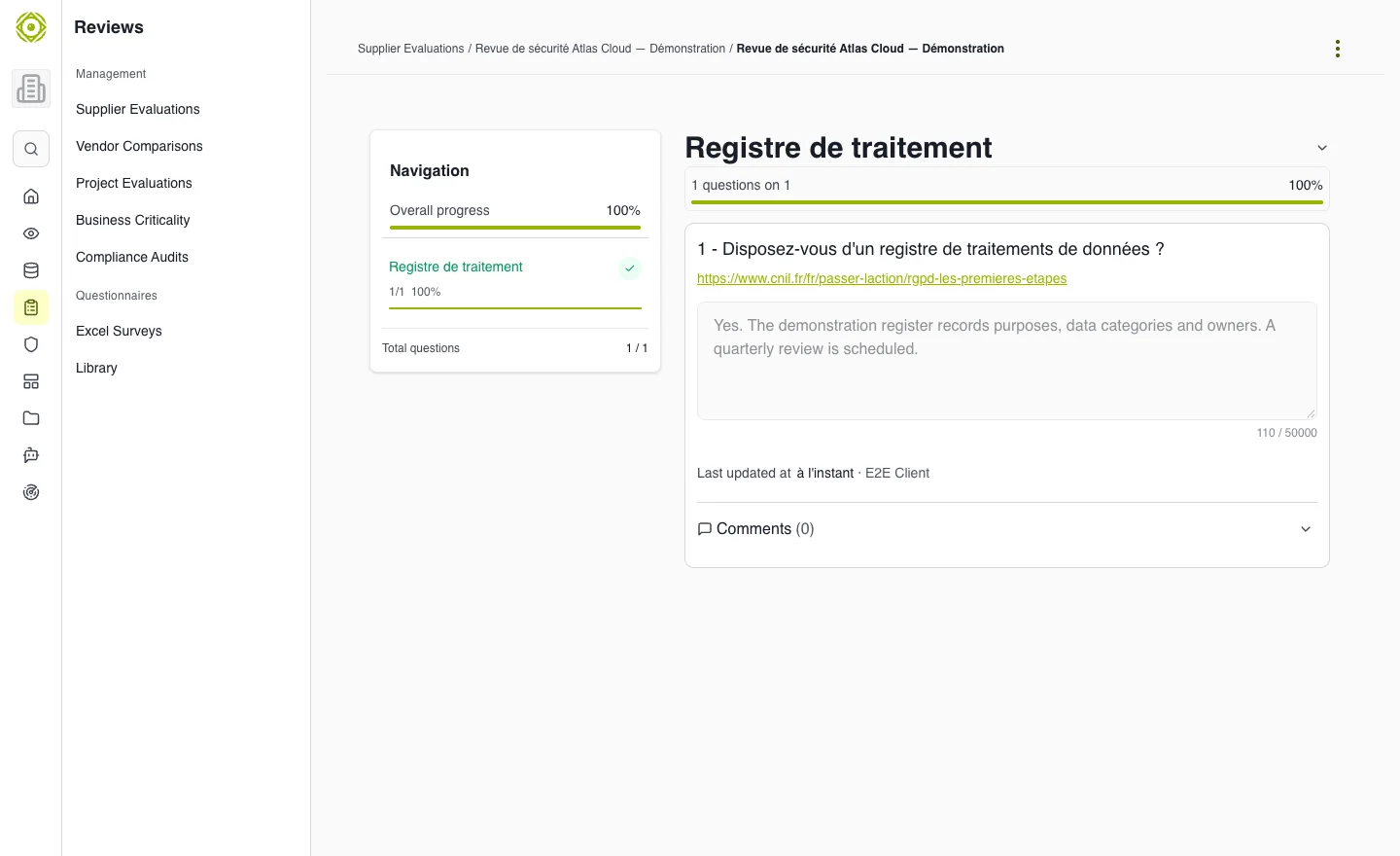
Sections and progress help locate questions that still need attention. · Open full-size screenshot
Answer "Not applicable"
When the question allows it, tick Not applicable next to the answer and, if needed, fill in the Justification (optional). On the client side, a "not applicable" answer is approved (Approve not applicable) or challenged (Challenge not applicable); the respondent then sees the notice "The client challenges the not-applicable status of this question" and can correct it.
Answer a maturity scale
For a Maturity scale question, choose a level under "Select your current level". If the scale requires it, fill in the Justification: "A justification is required for this level." is shown until it is provided. Not applicable remains possible if the question allows it.
On the client side, the reviewer can Adjust the score: they choose another level or enter a Free value (%). The gap stays visible as "Declared X % → validated Y %".
Language: these labels are not yet translated into English; they translate the French interface.
Distribute questions among colleagues
An authorized assessment owner can assign sections or questions:
- In a section or question header, open assignment (Assign this section / Assign this question).
- Pick an Owner and Contributors, and optionally add a message. Typing an email address invites someone not yet registered (unless the vendor manages its own users: only its members can then be assigned).
- A question inherits its section's assignment; changing it creates an assignment specific to that question.
- The Distribution button opens the overview: progress per person ("x / y answered"), questions without an owner, answers to fix, Remind (one reminder per person per day) and assignment/reminder History.
- Filter questions with All, My questions or Unassigned.
Assignees see a "You have N questions to address" banner and find their questions under To be addressed. On submission, a warning lists assigned questions still unanswered. Assignments can no longer be changed once the assessment is closed.
After submission
Status and available actions can change. Check the displayed state before considering the questionnaire delivered. To correct a locked response, contact the assessment owner.
Common difficulties
- Inaccessible questionnaire: check your account email and invitation.
- Missing required answer: review all sections, including those not yet opened.
- Missing evidence: check that the reviewers can access the document.
- Cannot assign: you need the assign right on this assessment; too many recent email invitations also block sending.
- Missing button: your access may be read-only or the current status may prevent edits.
For a guided journey, see Answer a received questionnaire.
Expected outcome
Responses are saved in the correct questionnaire. The displayed status indicates whether additional finalization is necessary.
Answer on behalf of the vendor
When managing an assessment on the client side, input fields may be disabled. If you need to enter an answer for the vendor, select Answering for the supplier when offered. Distinguish these answers from information confirmed directly by the vendor.