
Import an Excel questionnaire
Analyze a workbook, review its structure and publish the questionnaire.
Access: member. Subject to enabled modules and your plan.
Prerequisites
Excel questionnaire import must be enabled for your plan. Prepare a workbook with identifiable questions and answers, and retain the original file.
Import and review
- Open Reviews → Excel questionnaires and start an import.
- Select the workbook and complete the requested information.
- Wait for analysis to finish. Processing can continue while you visit another page.
- Open the import to review sheets, sections and recognized elements.
- Correct cell roles and proposed mappings where needed. Review analysis findings before publication.
- Use publication to open the questionnaire in the response editor.
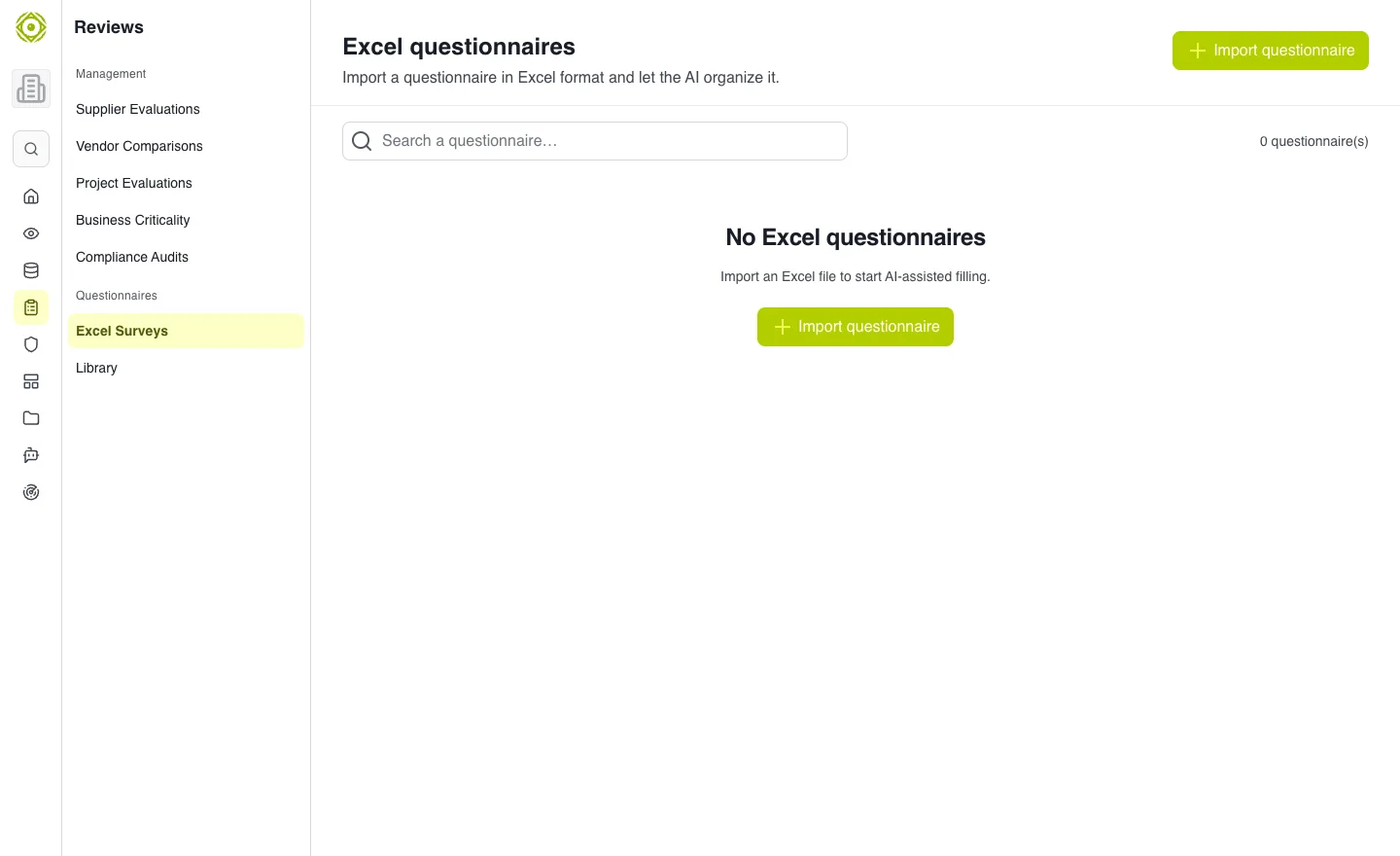
Import status distinguishes workbook analysis from opening the questionnaire. · Open full-size screenshot
Human review
Assisted analysis does not remove the need to check imported questions, choices and responses. Merged cells, multiple sheets and ambiguous headers need particular attention.
Failure or empty structure
If import fails, read the displayed message and use Retry when offered. If no usable structure is found, check the source workbook before trying again. Avoid creating identical imports while processing is still running.
Expected outcome
The published questionnaire matches the reviewed workbook and can be completed in CISAPP. Then check its responses like any other response questionnaire.