
Answer a received questionnaire
A journey for colleagues and external respondents invited to complete an assessment.
Access: respondent. Subject to enabled modules and your plan.
How do you answer a security questionnaire?
To answer a questionnaire received in CISAPP, use the account associated with the invitation, check the subject and complete answers with the requested evidence. Check that changes are saved and verify the status after submission when that action is available. Saving and finalizing are separate steps.
Preparation
Use the email address the invitation was sent to. Prepare responses and supporting documents. If you represent a vendor, check the organization and request scope.
Journey
- Open the received link and sign in or activate your account.
- Check the displayed questionnaire title, subject and requesting organization.
- Browse sections to understand the information expected.
- Answer questions and complete offered comments and evidence.
- Check progress and save state after changes.
- Review required responses and attachments.
- Submit when available, then check the displayed status.
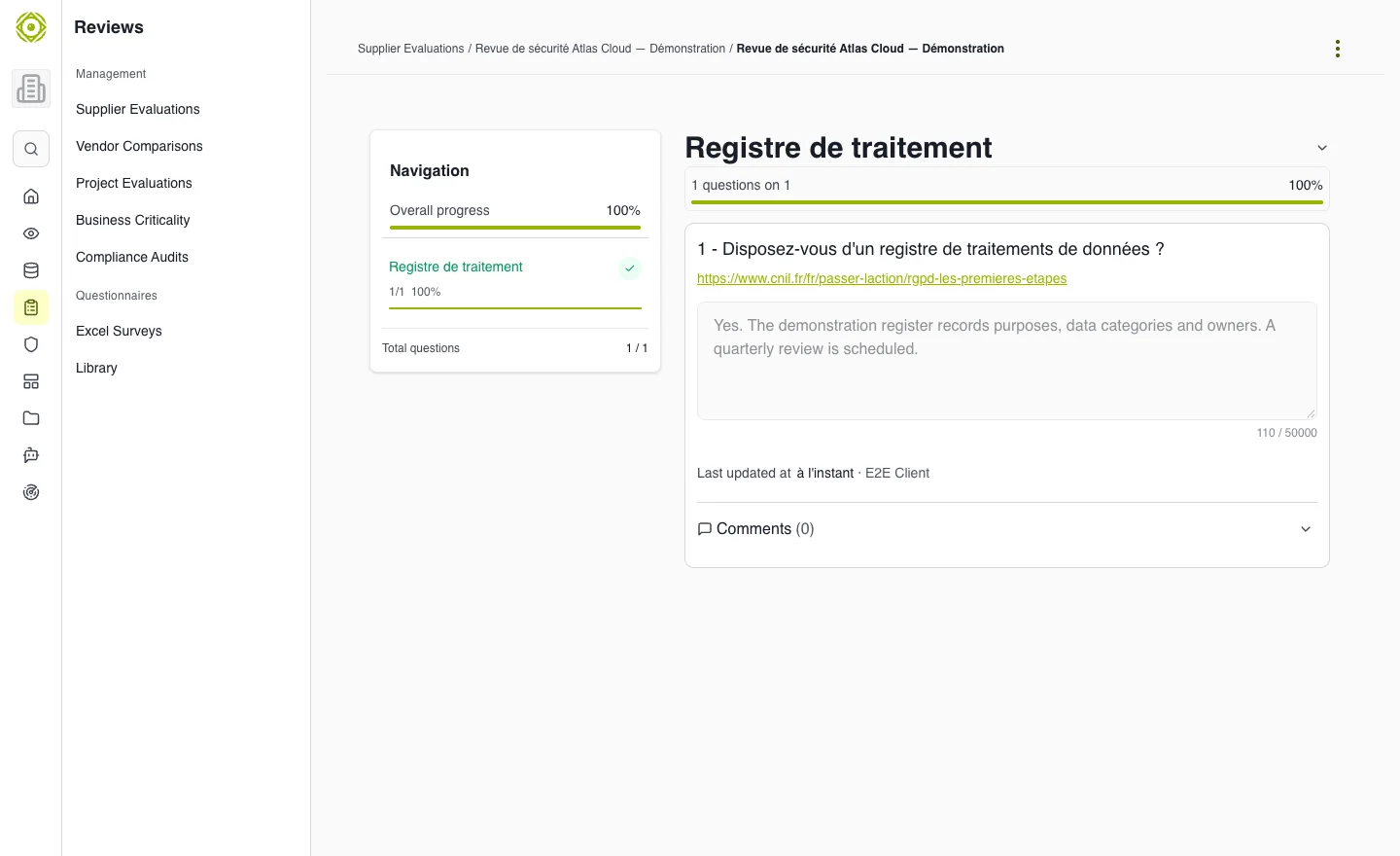
The outline helps check sections before submission. · Open full-size screenshot
If information is missing
Contact the assessment owner. Distinguish a pending response from a negative one; do not invent evidence to finish the form.
If access fails
Check the account email, activation and invitation. Find your assessments and the questions assigned to you under Assessments → To be addressed, or use the received link. Ask the owner to check permissions if the questionnaire does not open.
Success criteria
Expected responses are saved and status confirms submission when required. The owner can review information and supporting evidence.
Expected outcome
Your responses are saved and the request state has been checked before informing its sender of progress.
Common questions
Can you prepare answers before submitting?
Complete answers and check that they are saved as you work. Review information and attachments before using the submission action when offered. Do not infer finalization from the progress percentage alone.
What if you do not know an answer?
Ask the relevant owner for information and tell the assessment owner what is pending. Missing information should not become a negative answer or invented evidence.
Why has an invitation link stopped working?
Check the account address, activation and invitation validity. If the link expired or was revoked, ask the owner to resend it. See troubleshooting before creating another account.
Explore more questions about vendors, risk and compliance.