
Organize action plans and actions
Create an action plan, assign actions and follow progress.
Access: member. Beta feature, subject to enabled modules and your plan.
The Projects menu is now called Action plans, and tickets are now actions. Until the English interface is updated, some screens may still show the former names. The projects in the Registers menu are a different thing: see Do not confuse.
Create an action plan
- Open Action plans → All plans, then New action plan (or the Create an action plan shortcut).
- Enter the title and description of the work to organize.
- Choose the proposed status and check access.
- Finish creation and open the action plan.
- Add actions to break the work down into concrete tasks.
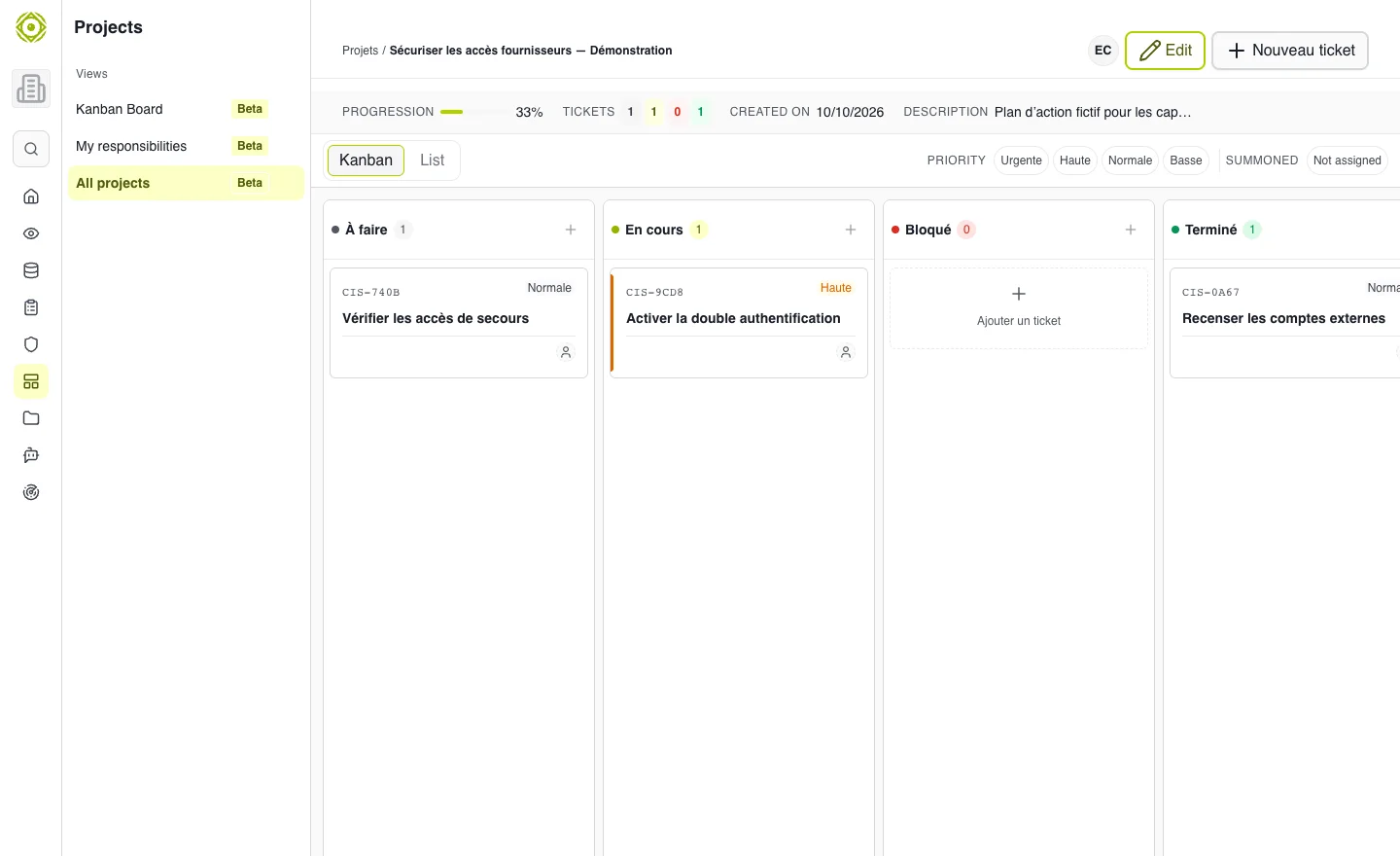
An action plan gathers the actions to carry out. · Open full-size screenshot
Track actions
Fill in the proposed information: title, description, priority, owner and due date. Move actions between To do, In progress, Blocked and Done. In the Kanban view, moving a card updates its status; check the confirmation if an error is displayed.
Use All actions for a cross-cutting view (Kanban or List views, Assignee and Priority filters, Add an action button) and My actions for those assigned to you. Relations between actions can represent blockers when offered.
An action can also be created from an application or project record with Add an action: it is placed in an existing or new action plan, then associated with the record.
Collaborate
Open an action to view or complete its comments, attachments and relations. Check the action plan's rights before adding information to share.
Expected outcome
Each useful action has an owner and an understandable status. The action plan status and its actions' statuses represent different levels.
Do not confuse
A project under Registers → Projects is a file whose security is tracked up to the launch decision: see Projects and launch decision. An application is an assessed technical solution: see Applications.