
Use the vendor record
Find a vendor’s information, contacts, notes, assessments and access.
Access: member. Subject to enabled modules and your plan.
Open and check the record
Open the third party from Registers → Suppliers. Check its name and domain before making changes. Some information belongs to the vendor’s organization; editing it may depend on its status and your account permissions.
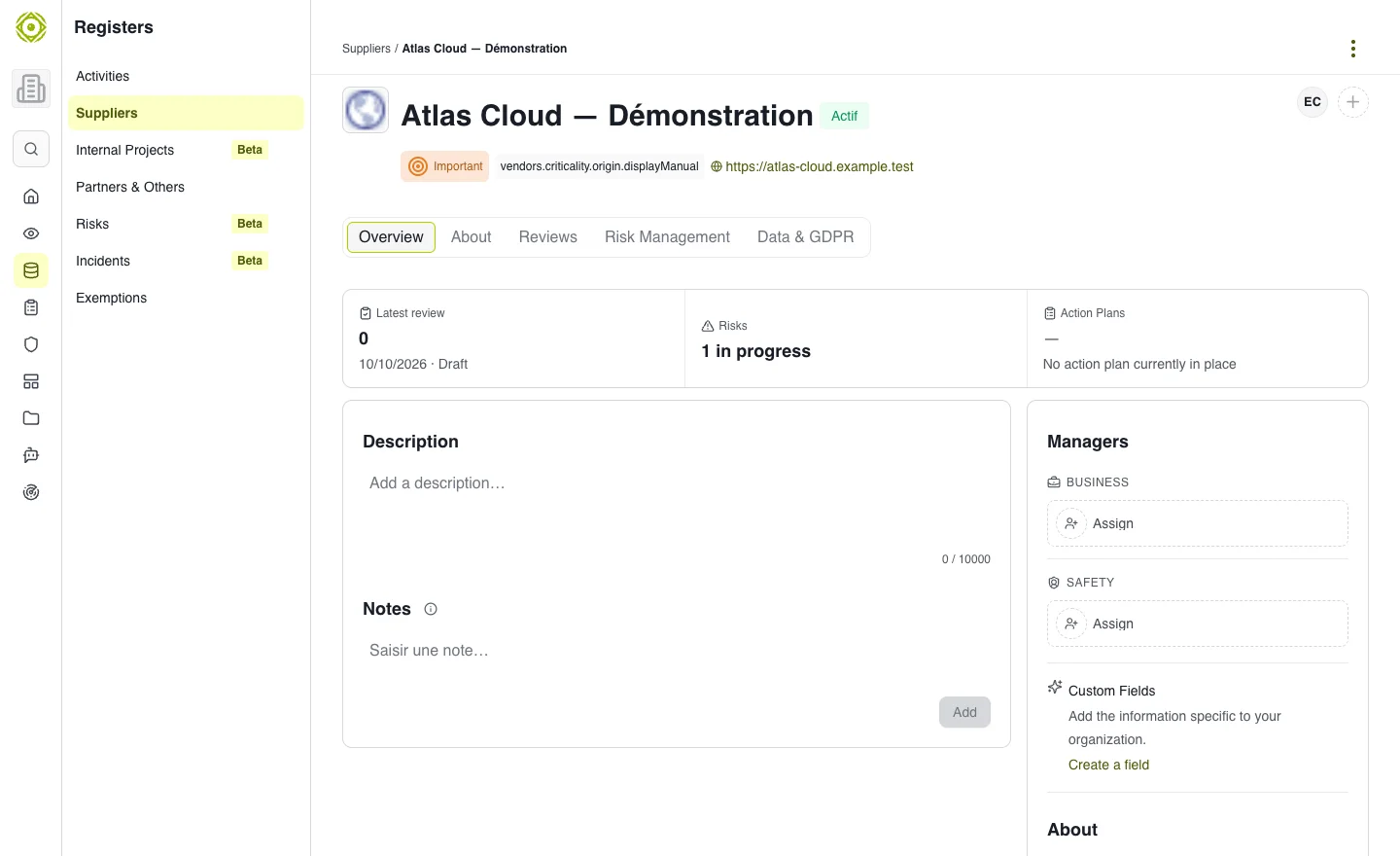
The record brings together the third party’s context and linked objects. · Open full-size screenshot
Maintain useful information
- Check the relationship status and business criticality.
- Complete contacts and their roles to identify the right respondent.
- Use notes to retain context useful to your organization.
- Review linked assessments and activities before deciding on a new action.
- Review access when an owner or team changes.
Exchanged documents
The Documents tab gathers documents exchanged with the vendor: added manually, received through a questionnaire or coming from a certification (the source and the Received / Sent direction are shown).
- Add documents (or drag and drop files onto the tab): choose a category for each document (Contract, DPA, NDA, Certification, Security policy, Audit report, Pentest report, Insurance, BCP / DRP, Questionnaire evidence, Financial, Other); a category may be suggested from the file name. For relevant categories (contract, DPA, NDA, certification…), fill in Valid until.
- On the client side, Share with the vendor lets the vendor view the documents you add.
- A banner flags documents to classify (Classify now) and expired or soon-to-expire documents.
- Search and filter by category; the list is limited to the 1,000 most recent documents.
- Some documents are secure view only: download is then unavailable.
Personal data and subcontracting
When GDPR options are enabled, dedicated fields describe personal-data processing, the third party’s roles and subcontracting information. Base these fields on the actual vendor relationship. Completing a field is not legal validation.
Prepare a reassessment
Open the previous assessment, check its scope and date, then start a new assessment if needed. See the onboarding guide.
Expected outcome
Another authorized member can understand who the vendor is, why it matters and what checks have been performed. If a tab fails to load, check permissions on the related object before retrying.