
Organize and share files
Create folders, upload documents and check access and classification.
Access: member. Subject to enabled modules and your plan.
Add documents
- Open Files.
- Use Create folder or open an existing folder.
- Drop files into the offered area or use the upload action.
- Wait for transfer confirmation and check the displayed files.
- Open a file to verify its content before reusing it as evidence.
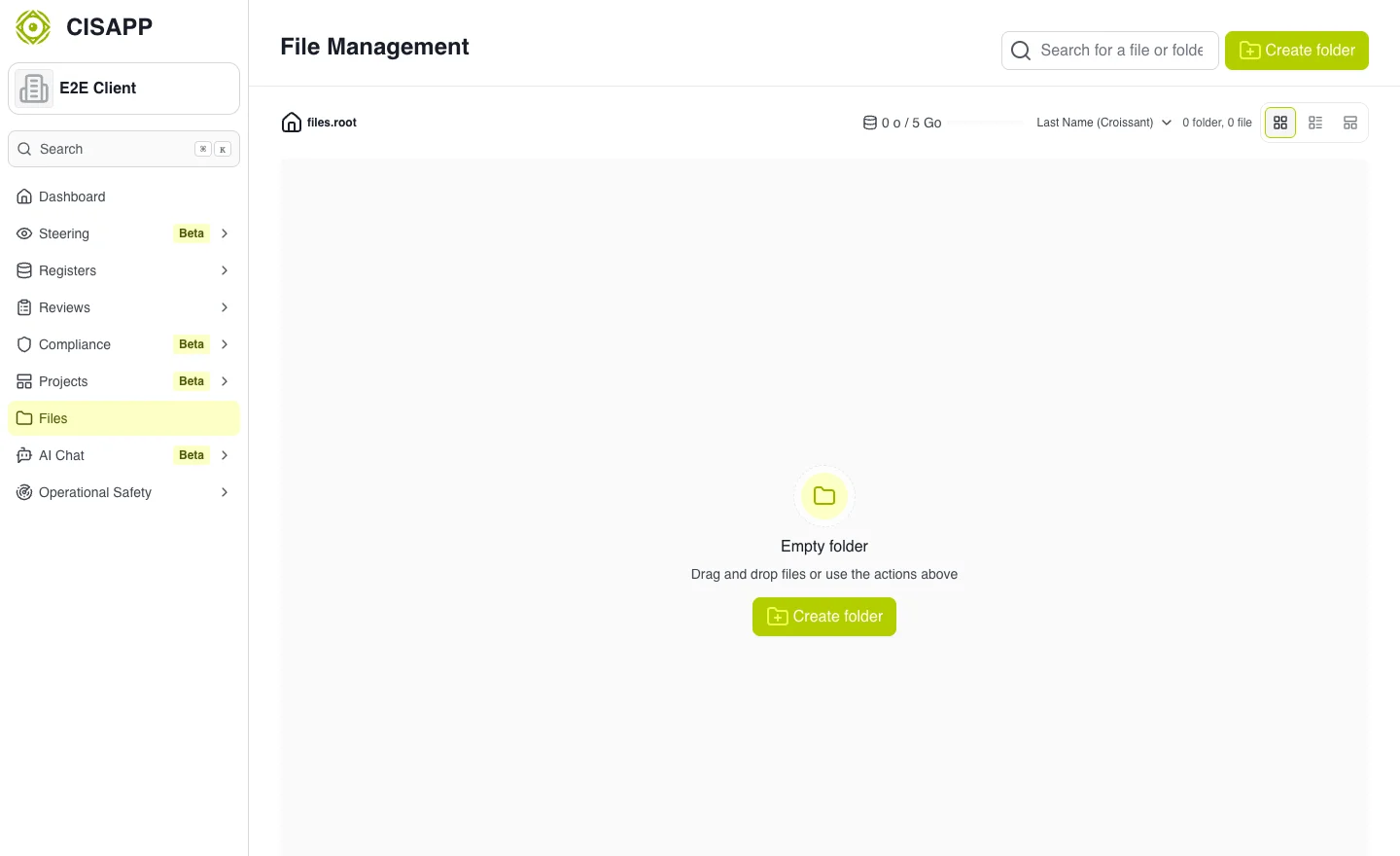
Card, list and tree views help you find documents. · Open full-size screenshot
Organize and classify
Use file or folder actions to rename items, complete descriptions and manage tags. Check TLP classification. When editing a folder, applying changes to contained files and subfolders extends the change to those items: review the scope before confirming.
Share
Check the offered permissions for people and teams. Access to an assessment does not automatically guarantee access to every file mentioned. Verify visibility with the intended recipient.
Quotas and deletion
Used and available storage is shown in the explorer. If an upload fails, check the quota and transfer message. Deleting one or more items requires confirmation and is irreversible.
Expected outcome
The correct document is organized, identifiable and accessible to the intended people. To ask the CISAPP chat about it, see AI chat and documents.