
Read and build dashboards
Read Home, create a dashboard from a template, add widgets, share it and organize the Steering menu.
Access: member to view; organization administrator (or client entity administrator) to organize the menu and choose Home. The dashboards module depends on your plan.
Language: the dashboard screens are not yet translated into English. Labels below translate the French interface.
Open Home
Select Home. The organization chooses which dashboard appears here for all its members. If no Home is set, the Overview template (critical vendors, open risks, expiring exemptions, assessment coverage) is shown. If no dashboard is available, the page offers to create your own or, for an administrator, to choose the organization's Home.
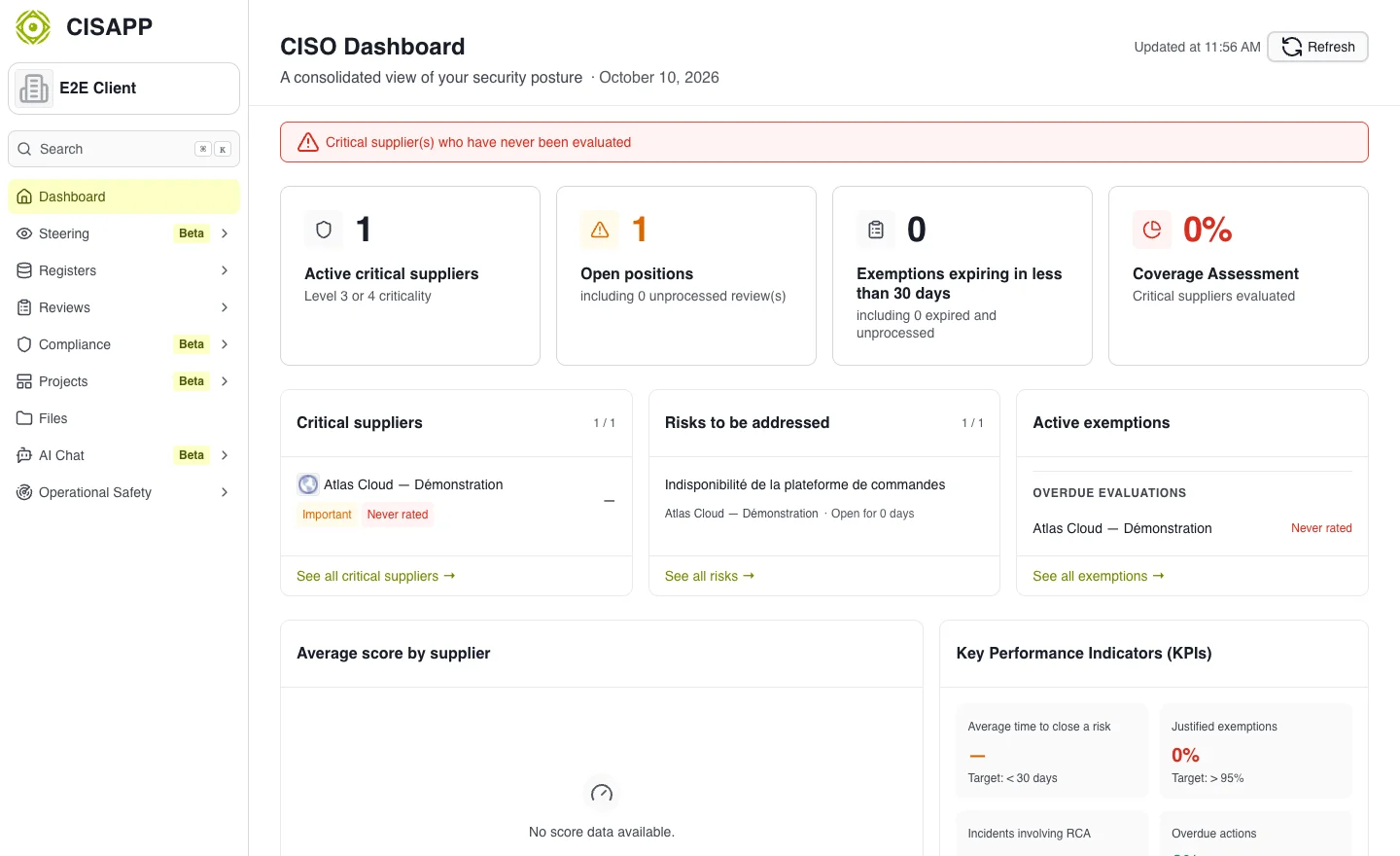
Read figures alongside their scope and the data actually recorded. · Open full-size screenshot
On a dashboard, the period and refresh controls let you set the chart period, refresh all widgets or enable automatic refresh. Each widget also offers, depending on its type, Full screen, View as table, Export as CSV or as image (PNG), and a View details link to the relevant register.
Find your dashboards
The Steering menu lists the dashboards pinned by the organization and your favorites. All dashboards opens the full list, with four tabs:
| Tab | Content |
|---|---|
| My dashboards | The ones you created. |
| Shared with me | Those a colleague gave you access to. |
| Organization | Organization dashboards, visible to all members. |
| Templates | Ready-made CISAPP dashboards, read-only. |
Use search to filter and the star to add or remove a favorite (favorites are sorted first).
Create a dashboard
- In the list, select New dashboard.
- Starting point: choose a blank dashboard or a template (Overview, Vendors, Risks, Compliance, Assessments, Action plan tracking (all plans), Action plan tracking (one plan), SecOps, GDPR, Third-party risk committee).
- Information: name, description and icon.
- Access and sharing: you are the owner; add colleagues or teams with read or edit rights, as for other items.
- Summary, then create. A warning appears if some shares failed: retry from Share.
An interrupted creation draft can be restored when you reopen the wizard.
Add and arrange widgets
On a dashboard you can edit, select Customize (or Add a widget if it is empty). The gallery has two tabs:
- Ready to use: preconfigured indicators grouped by category (vendors, risks, compliance, incidents, etc.). Use the indicator search or Expand all / Collapse all. An indicator missing from your plan shows a lock ("Not included in your plan").
- Create from scratch: choose a visualization type (key figure, ratio, line, bars, donut, list, matrix, text, section, news, network graph, cartography), then configure its data.
Drag a widget onto the dashboard, or click it to add it. A dashboard holds at most 40 widgets.
- Configure opens the widget editor: visualization, queries, formulas, filters, target and thresholds. See Configure a widget.
- Move and resize widgets with the mouse, or the keyboard (arrows; Shift + arrows to resize). Layout can only be edited on screens at least 1024 px wide.
- Duplicate and Delete are available on each widget in customization mode.
- Undo/Redo, then Save. If someone else saved the dashboard while you were editing, choose Reload or Overwrite. Unsaved changes can be restored when you return.
- Missing an indicator? Request a widget sends your need (title, need, desired visualization) to the CISAPP team, who reply by email. Requests are limited per hour.
Share, duplicate, publish
In a dashboard's actions menu:
- Share: gives members or teams access (read/edit rights).
- Duplicate: creates a personal copy. A template or read-only dashboard is customized this way (Duplicate to customize).
- Propose to the organization: creates a draft copy for the organization.
- Publish / Back to draft (administrator): an organization draft is hidden from members, the Steering menu and Home.
- Set as organization Home (administrator): members land on this dashboard.
- Delete: permanent; owner only.
Organize the Steering menu (administrator)
Two entry points lead to the same settings:
- In the list, Organize menu: drag dashboards into Pinned (maximum 20) and reorder them; choose the Home.
- My company → Dashboards: the Home section chooses the Home dashboard; the Steering menu section lists pinned dashboards in order, with Manage menu.
Only published organization dashboards can be used as Home; when none is chosen, members see Overview (CISAPP template). The Home dashboard is always pinned; unpinning it removes it as Home. An organization draft cannot be pinned: publish it first. Pinning a personal dashboard transfers it to the organization (visible to all, editable by administrators, personal shares removed) after confirmation.
Prepare a review
- Check the update time and period.
- Open priority items from lists and View details links.
- Examine their details before deciding an action.
- Complete missing data in the relevant registers.
Current limitations
Widgets reflect data from enabled modules. An empty value or dash may indicate unavailable data rather than zero. Evolution over time of a key figure or ratio is only available after enabling Track history, with no backfill (see Set a target and thresholds).
See also Configure a widget, Query language and Prepare a risk committee.
Expected outcome
You open Home, find or create the suitable dashboard, and review indicators with their scope before opening the corresponding registers.