
Prepare a signature request
Upload a PDF, add recipients and track the request.
Access: member. Beta feature, subject to enabled modules and your plan.
Prepare the document
Open Electronic signatures from the command palette. Check that you are using the final PDF and have the required access.
Create the request
- Start creating a signature request.
- Drop the PDF into the upload area.
- Wait for transfer confirmation.
- Enter Document title, then select Créer une signature.
- Open the created request and review its document preview.
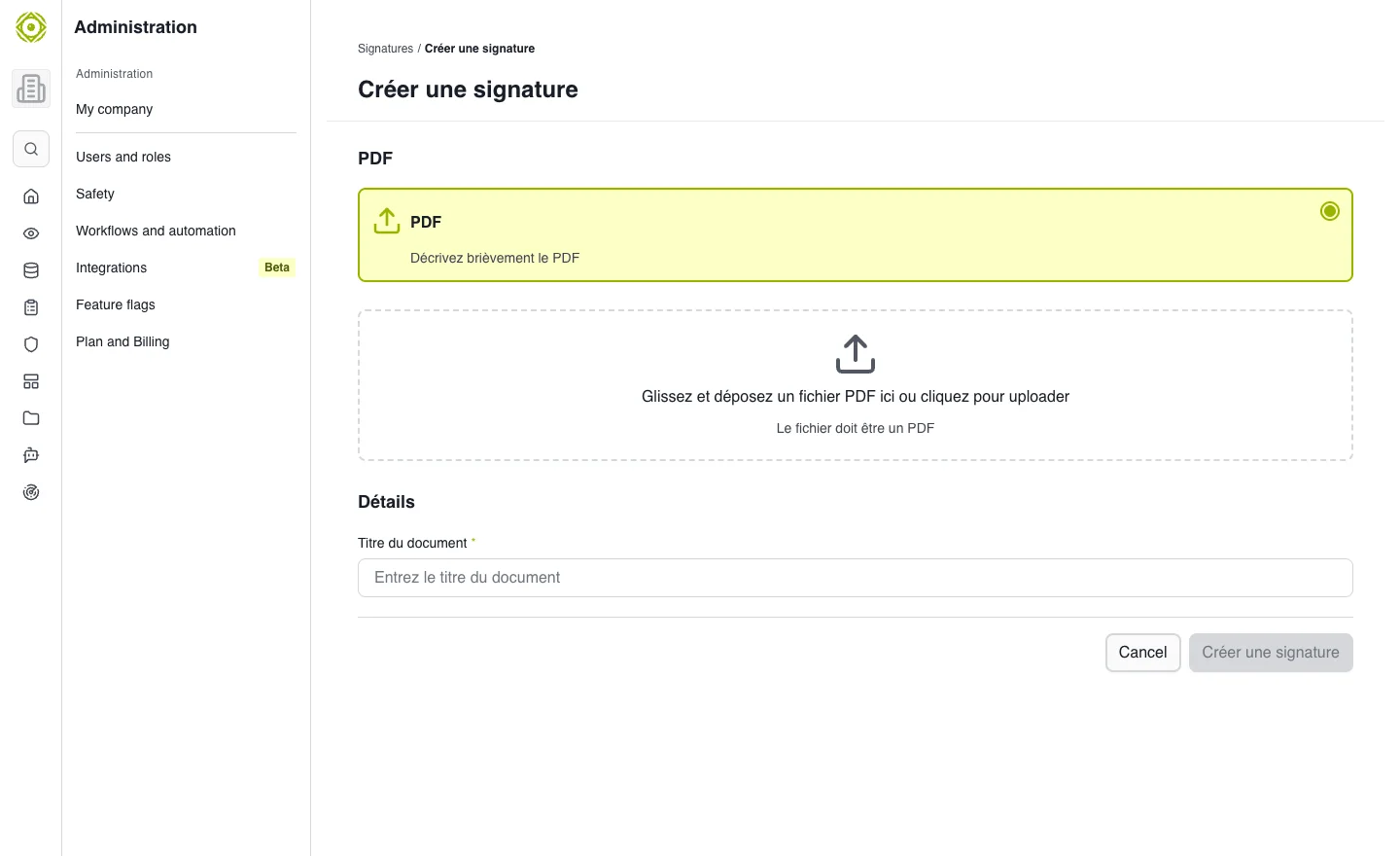
The form starts with the PDF and document title. · Open full-size screenshot
Add recipients
Use Ajouter un destinataire and enter their name and email. Check addresses before selecting Envoyer pour signature. Sending is separate from creating the request.
Track the request
Reopen its record to review recipients, status and creation/completion dates. A created but unsent document has not yet been submitted to recipients.
Common difficulties
If upload fails, check that the file is a PDF and meets the displayed limit. If sending is unavailable, check recipients and required fields.
Expected outcome
The request contains the correct PDF and recipients; its state reflects the progress shown by CISAPP.