
Manage questionnaires
Choose a template, create a questionnaire and organize questions.
Access: member, questionnaire creation. Subject to enabled modules and your plan.
A questionnaire is a reusable question structure. Responses completed in an assessment belong to a response questionnaire, distinct from the template.
Find a questionnaire
Open Reviews → Questionnaires. Search for a title and open its details to check content, purpose and sections before use.
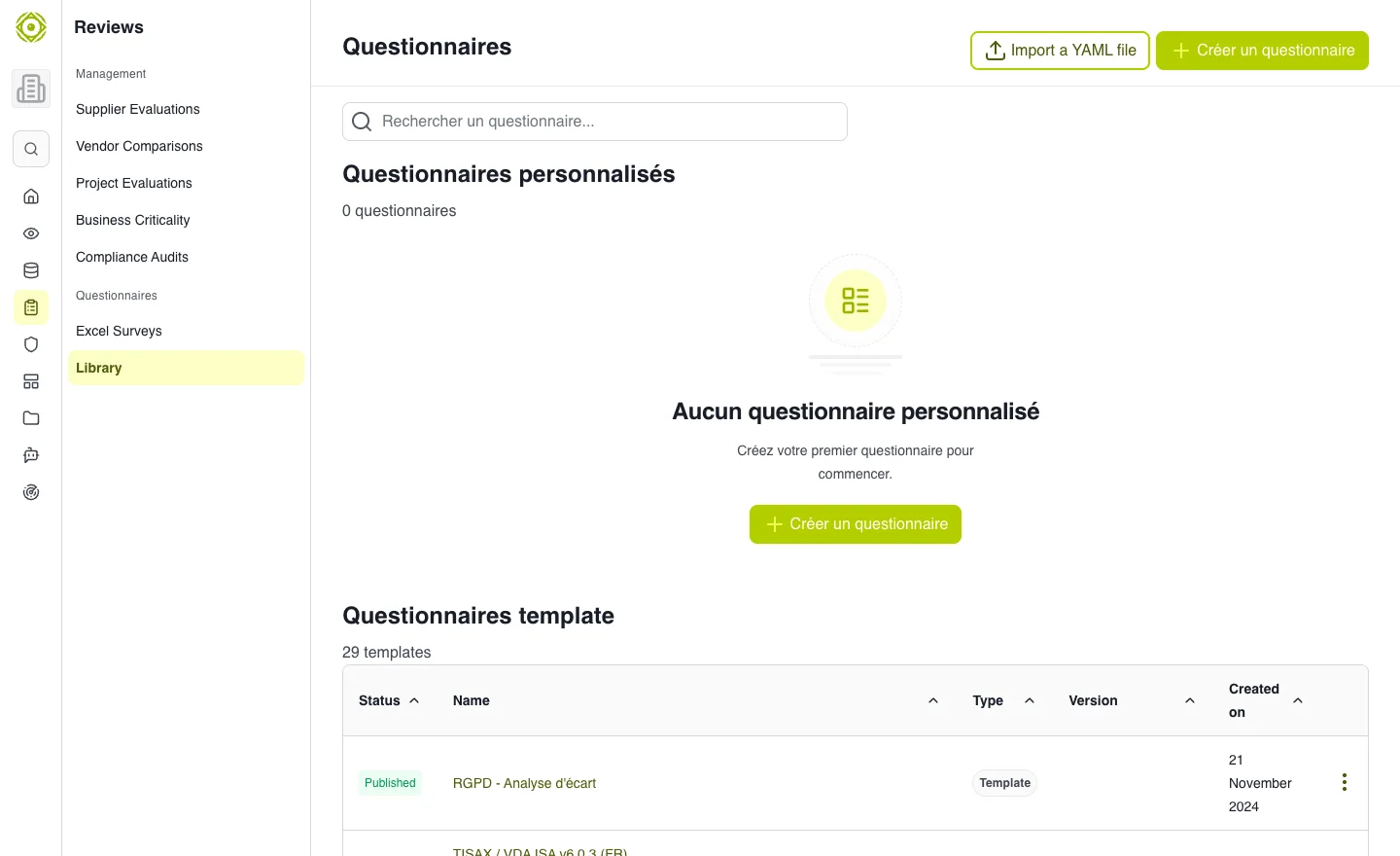
Check the questionnaire’s purpose before attaching it to an assessment. · Open full-size screenshot
Create a questionnaire
- Select the creation action. Questionnaire-creation permission is required.
- Enter general information and the offered destination.
- Create the questionnaire and open its editor.
- Organize sections and add questions using suitable response types.
- Review wording, answer choices and required fields before use.
Details and the editor serve different purposes: use details to read and the editor to change the structure.
Edit the structure
In the editor, the center column shows the tree of sections and questions, and the right column shows the properties of the selected item.
- Add: hover the gap between two questions and click + to insert a question there, or use Add a question at the bottom of a section. The new question is selected and its wording is ready to type.
- Delete: deletion is immediate, with no confirmation. A message appears for a few seconds with an Undo action to bring the item back (with its subsections and questions for a section). After that delay the deletion is final.
- Reorder: drag and drop a question or section in the tree.
Changes are saved automatically.
Add a maturity scale
The Maturity scale (%) question type asks the respondent to place their level on a scale you define. The percentage of the chosen level becomes the answer score.
Language: this editor is not yet translated into English. Labels below translate the French interface.
- Add a question of type Maturity scale (%). It is created with the 0 – 100 % preset: Non-compliant (0 %), Initial (25 %), Defined (50 %), Managed (75 %), Optimized (100 %).
- For each level, enter the Level (%), the Label and, if needed, a Description of what the level means in practice.
- Add a level or Remove the level to match your grid; 0 – 100 % preset restores the default levels.
- Tick or untick Justification required (ticked by default): the respondent must then explain the chosen level.
- Check the rendering in the Respondent preview.
A scale has 2 to 11 levels. Each level is an integer between 0 and 100, used only once, with a label.
Editor keyboard shortcuts
Shortcuts work when no input field is active. Press ? (or click the keyboard icon at the top of the page) to show the cheat sheet in the editor.
| Shortcut | Action |
|---|---|
| J or ↓ | Next item |
| K or ↑ | Previous item |
| Enter or E | Edit the selected item’s properties |
| Esc | Leave the current field, then clear the selection |
| C | New question after the selected item (or at the end of the section) |
| S | New section |
| Shift + S | New subsection of the selected section |
| Delete or ⌫ | Delete the selected item |
| ⌘ Z / Ctrl Z | Undo the last deletion while the message is still shown |
| ? | Show the shortcuts |
Good practices
Ask one thing per question. Explain the evidence expected in the wording. Use the same questionnaire version across vendors when comparing them.
Common difficulties
- Creation unavailable: check questionnaire-creation permission.
- Missing questionnaire in an assessment: check purpose and access.
- Unclear question: improve the template for future use and clarify the context with affected respondents.
Expected outcome
The questionnaire contains the intended sections and questions and can be found in pickers matching its purpose.